Monday, 12 September 2022

iCal Expressions


FREQ=DAILY;BYHOUR=4,5,6,7,8,9,10,11,12,13,14,15,16,17,18;BYMINUTE=0,10,20,30,40,50;BYSECOND=0;

FREQ=MONTHLY;BYMONTHDAY=1,10,15;BYHOUR=5,10,15,20;BYMINUTE=15;

FREQ=YEARLY;INTERVAL=3;BYMONTH=3;BYDAY=2,22;

<Every Three years on May 2nd and 22nd >


BYYEARDAY

BYWEEKNO

BYMONTH

BYSETPOS

WKST


FREQ= “SECONDLY” / “MINUTELY” / “HOURLY” / “DAILY”/ “WEEKLY” / “MONTHLY” / “YEARLY”

hour = 1DIGIT / 2DIGIT ;0 to 23

weekday = “SU” / “MO” / “TU” / “WE” / “TH” / “FR” / “SA”


Mule - API Designer - RAML - API First Development

Mulesoft support API First development method by using API Designer and Exchange server. This feature help the organizations are define and publish standard and reusable API's.  

As part of  API first development strategy, we can define API's , get it reviewed by different LOB, stake holders and publish the final API for discovery and consumption.   

This will help the organization to streamline the development process by reusing existing API's and speedup the delivery process. 

Mulesoft provides API Designer to design and develop API definitions. API Designer will use RAML specifications to define an API. 

API designer will provide mock service capabilities to test the API definition.  We can use the Public endpoints to test the API definitions from Postman or Advanced Rest Client.

We can publish the API definition to Mulesoft Exchange server and this will create an API portal . API portal provides a console for documentation, mock service and sharing capabilities. 

We can  share the API definition with users within our organizations and with public users (Client applications) .

User can discover API definition , verify using mock service and consume the API for processing requests. 

Follow below steps to access, design and develop API's using Mulesoft. 

  • Access following any-point URL by providing login credentials   - https://anypoint.mulesoft.com/
  • Click the burger menu (Left side) to access the Mulesoft offerings. 
    • Design Center -  API designer
    • Exchange Server
    • Management Centre. 
  • Use Design Center to design API's
    • Select Create New to create 
      • API Specification 
      • New Mule App - Flow design
      • New Fragment
      • New Async API
    • We will API Specification to create New API
      • Provide a Project Name - Example Common Integration Pattern
      • Select Comfortable designing on my own option with RAML 1.0 option
      • This will create - Common-Integration-Pattern.raml file
      • RAML uses YAML standards to define API
      • You will see four windows
        • Left - File Browser 
        • Right - API Console
        • Center - Editor Window
        • Bottom - Shelf 
      • RAML is indent based definition. Make sure we will follow the right indentation. 
      • Based on the indentation , Shelf will display the corresponding tags we can add. 
      • Center window will display the RAML version which we have selected and the project name which we have provided. 
      • Under this we can add Root elements . 
        • baseUri - To specify the base URL
        • Protocol - HTTP/HTTPS
        • Version 
        • etc
      • I will provide the baseUri: https://svn-ics-enterprise.com
      • Under this provide the context URL
        • /submitIntegration :
      • Under the context URL , provide the HTTP methods
        • get
        • post
      • We can provide URL parameter under base context URL. Make a note of indentation.
/submitIntegration :
  get:
  post:
  
  /{IntegrationRunId}:
      • We can provide the http methods allowed for each context URL paths 
      • Under each HTTP method we can mention the content type and query parameters. 
      • We can create a Folder and add data model (Data Type)
      • Left side under file browser select +
      • Select Folder
      • Provide a name - DataModel
      • Under DataModel select +
        • Add Data Type file to define the Request and Response Structure. 
          • Select File Type as Data Type from the list. 
          • Add the data type object 
          • Refer below sample 
        • Add Example file to define sample request and response Message. 
          • Select file type as Example
          • Add Sample Values
          • Refer below sample
      • Publish the API definition to Exchange Server. 
        • Use the publish option on the right corner
        • Provide the version number


Sample RAML File: 


#%RAML 1.0
title: Common Integration Pattern
#baseUri: https://svn-ics-enterprise.com

types:
  RequestMessage : !include /DataModel/IntegrationRequestType.raml

/submitIntegration :      
  post:
    body:
      application/json:
        type: RequestMessage
        examples:
          input: !include /DataModel/IntegrationRequestExample.raml
    responses:
      200:
        body:
          application/json:
            type: object
            example:
              Message: "Successfully Submitted"

  get:
    queryParameters:
      IntegrationCode:
        required: true
    responses:
      200:
        body:
          application/json:
            type: RequestMessage
            examples:
              output: !include /DataModel/IntegrationRequestExample.raml

  /{IntegrationRunId}:
    get:
      responses:
        200:
          body:
            application/json:
              type: RequestMessage
              examples:
                output: !include /DataModel/IntegrationRequestExample.raml


Sample Data Type:

#%RAML 1.0 DataType

type: object
properties:
  "IntegrationCode": string
  "RunBy": string
  "Status": string
  "RunId": integer
  "TransactionId": string
  "Output": string
  "ErrorCode": string
  "ErrorMessage": string
  "Parameters": 
    type: array
    items: ---> Mandatory for adding array of elements. Array Type should have items under it.
      properties:
        "ParameterName": string
        "ParameterValue": string
        "ParameterScope": string
        "ParameterType" : string
        "ParameterSequence": integer


Sample Example Value File:

#%RAML 1.0 NamedExample

value:
  IntegrationCode: ProcessInvoice
  RunBy: VijayaKumar
  Status: Start
  RunId: 1234
  TransactionId: abc1234
  Output: Success
  ErrorCode: XXXX
  ErrorMessage: Sampl Error
  Parameters:
  -
      ParameterName: InvoiceType
      ParameterValue: CreditMemo
      ParameterScope: Step
      ParameterType: BIP
      ParameterSequence: 1
  -
      ParameterName: Supplier
      ParameterValue: SaanviNihal
      ParameterScope: Step
      ParameterType: BIP
      ParameterSequence: 2
  

Database Admin Commands

Use the following commands to test the connection and configurations. 

  • Check the listener status
    • lsnrctl status <Alias_FROM_listener_Or_TNSnames_ORA>
  • iSQL command to access Postgres database.
    • isql <alias_name> -v

Saturday, 20 August 2022

Sample JAX-RS REST API Implementation

 We can use different  tools and technologies to create and expose a REST API. In this blog I will explain how to create a simple JAX-RS REST API using JDeveloper. 

  • Open Jdeveloper and create a new ADF REST Web Application
  • Provide an application name - JaxRsSampleApp
  • Provide a package name - xxvk.svn
  • Select Next and Keep the default Project Name 
  • Select Finish
  • This will generate two projects. 
    • RESTModel
    • RESTWebservice
  • Delete the RESTModel project
  • Right click the RESTWebservice project and select new
  • Select Java Class and provide a name. - HelloService
  • Add following  @Path("/services") before the class definition // Note : Path can be anything
  • Select the warning/error next to Path and select add JaxRs package to the project. 
  • As soon as you add the JAX RS package to the project it will generate the main application Java class - GenericApplication with an extend jax.rs.core.Application
  • Delete the default method and add the following sample method to return sample plain text. 
  • Right click the project and select project properties
    • Got to Java EE Application
    • Context Root to a meaning full value. -- HelloService
  • Save changes 
  • Right click the Java service and select RUN. 
  • This will deploy the application to Integrated server and provide the sample URL
    • http://127.0.0.1:7101/xxvk-service/resources/services
  • Take the URL and paste in a browser. It will display the result. 
    package xxvk.svn;
    import javax.ws.rs.GET;
    import javax.ws.rs.Path;
    import javax.ws.rs.Produces;
    import javax.ws.rs.core.MediaType;

@Path("/services")
public class HelloService {
        @GET  // This will import the Get package
        @Produces(MediaType.TEXT_PLAIN)  // This will produce the out put in plain text format
        public String Sayhello(){
            return "Hello Welcome";
        }
}


Friday, 19 August 2022

SOA - Receive Message From EJB

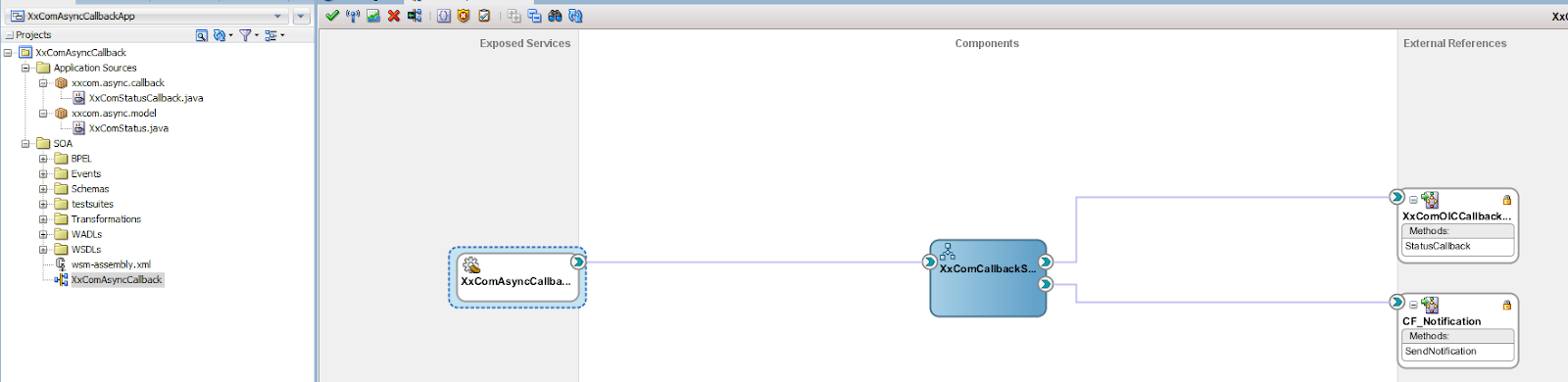
 We can use EJB service to receive message from locally deployed EJB applications. We can use the following steps to create a SOA application to consume message from an EJB.

  • Create a SOA application 
  • Create an empty SOA project
  • Select the SOA project created above , right click and select New option 
  • Select Java class and provide class name and package name and select ok
  • If you get a prompt to select the folder then select project_name/src folder
  • Overwrite the generated class with below sample interface code. 
        package svn.com.callback;
        import java.util.List;
        import svn.com.model.XxComStatus;  // POJO class representing incoming message structure.
        public interface class_name
            {
              public String exec(XxComStatus status);
            }

        • Go to SOA composite add select EJB service
        • Provide Service Name - ConsumeEJBMessage
        • Provide a meaningful JNDI Name - ConumeCallbackMessageEJB
        • Provide Java Interface Name as - svn.com.callback.class_name  // Taken from above Java code. 
        • Open the composite SOURCE tab and add the missing values. 
          <service name="ConsumeEJBMessage">
            <interface.java interface="svn.com.callback.class_name"/>
            <binding.ejb uri="ConumeCallbackMessageEJB" ejb-version="EJB3" javaInterface="svn.com.callback.class_name"/>
          </service>
        • Create a BPEL process without service definition
        • Now wire EJB service and BPEL. This will generate the service WSDL
        • Now you can update the SOA composite as per the business requirement. 


        Sample Composite:


        Reference : https://technology.amis.nl/it/publish-soa-composite-application-as-ejb-to-be-invoked-from-java-applications-using-ejb-binding/

        Monday, 4 July 2022

        Oracle Fusion - Enable Federated SSO with Oracle Identity Cloud Service (IDCS) as Identity Provider

        In this blog , I will explain what all configurations we need to perform to establish a federated SSO between  IDCS which will act as IdP and Oracle Fusion - SaaS which will act as Service Provider - SP

        Pre - Configurations : 

        • IDCS : 
          • Get the Oracle IDCS - IDP Metadata XML using this link: https://<IDCS-Service-Instance>.identity.oraclecloud.com/fed/v1/metadata
          • Save the file - IDP_Metadata.xml
          • Note:  In case if you get an error like Page Not Working then follow the below instructions to enable certificate access. 
            • Login to IDCS admin console. 
            • Go to Settings
            • Select Default Settings option
            • Enable - "Access Signing Certificate"
            • Save the changes. 
            • Now access the metadata URL. 
         
        • Fusion-SaaS:
          • Get Service Provider Meta Data.
            • Use the following URL and download the SP_MetaData.xml
            • https://login-ics-dev1-saasfaprod1.fa.ocs.oraclecloud.com/fed/sp/metadata
              • domain_name : ics-dev1
          • Get Tenant and Domain Names:
            • Example Fusion URL - https://fa-ics-dev1-saasfaprod1.fa.ocs.oraclecloud.com/fscmUI/
            • Tenant or POD Name : ics-dev1
            • Domain Name : saasfaprod1.fa.ocs.oraclecloud.com

        Main Configurations: 

        Fusion-SaaS:
        • Login to SaaS application using Security Admin User. 
        • Go to Security Console
        • Select Single Sign-On on left Menu
        • Click + Create Identity Provider.
          • Select Edit On Top
          • Provide following details. 
            • Name : IDCS-IDP
            • Description : IDCS Identity Provider.
            • Name Id Format - Unspecified - Select from drop down. 
            • Select Default Identifier Option.  
            • Upload the Meta data file downloaded from IDCS - Refer Above Pre-config steps. 
            • Save and Close


              • Select Service Provider Tab
              • Download the Service Provider Signing Certificate. 


            IDCS Configurations: 

            • Create Fusion Application :
              • Login to IDCS
              • Go to Applications
              • Select Add ( + )
              • Select App Catalog
              • Search for Oracle Fusion 
              • Select R13 app
            • Provide following details to the App - 
              • Name : Fusion ERP SSO App
              • Description : Fusion ERP SSO App
              • Select required SaaS Applications
              • Go to Next Page
              • Open the SP_Metadata.xml file downloaded as part of pre-config  step. 
              • Get EntityId value
                • entityID="https://login-ics-dev1-saasfaprod1.fa.ocs.oraclecloud.com:443/oam/fed"
              • Assertion Consumer Value:
                • <md:AssertionConsumerService Binding="urn:oasis:names:tc:SAML:2.0:bindings:HTTP-POST" Location="https://login-ics-dev1-saasfaprod1.fa.ocs.oraclecloud.com/oam/server/fed/sp/sso" index="1"/>
              • Upload the signing certificate that was downloaded from Fusion apps during SSO configuration. Refer Above Fusion activity . 
              • Download Signing Certificate and Identity Provider Metadata and save as file and click “Next”
              • On the Provisioning tab DO NOT Enable Provisioning and click the Finish button to complete the application setup
              • Activate the application. 

            TEST and ENABLE SSO :
            • Login to SaaS application using Security Admin User. 
            • Make sure the user is present in IDCS and updated as Federated. Same User is present in SaaS as well --- Note
            • Go to Security Console
            • Select Single Sign-On on left Menu
            • Select the IDCS-IDP created earlier. 
              • Select Diagnostics and Activation 
              • Select TEST
              • Select IDCS-IDP and Click Start SSO
              • It will take you to IDCS login Page. 
                • Provide SSO credentials. 
                • After Successful authentication Status will get updated as Success. 
                • Enable Identity Provider. 


            OCI - OGW - Oracle Gateway Configurations

            Oracle offers multiple API management tools.  API Platform Cloud Service and Oracle Native Gateway or OCI Gateway are the prominent ones. 

            API Platform Cloud Service will be managed by customers. Customer is responsible for managing API security and Infrastructure.  Customer needs to provision API PCS and then provision gateway server (Weblogic Server) to deploy all the application API. 

            API PCS provides a management console to create and manage APIs . API's will be published to gateway servers.  Gateway servers will connect and poll the changes and deploy them on to the server. 

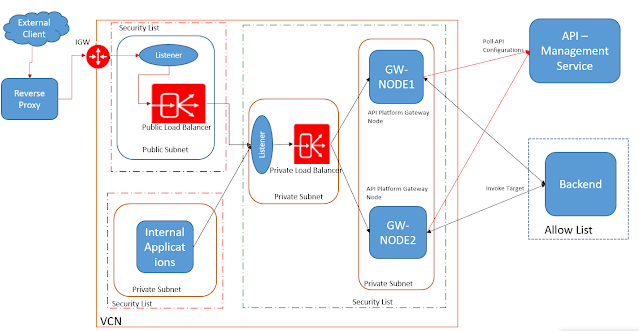
            Following network flow diagram will show how the traffic flow can be configured and how the gateway servers will interact with management servers and backend applications. 


            API PCS

            Network Flow Diagram


            Oracle offers Gateway - a fully managed service to manage APIs. Here the customer is responsible for creating and managing API definition and security.  Underlying infrastructure is managed by Oracle.  

            As part of OCI gateway configurations, we need to create a gateway and then deployments (API definitions).  Gateway will be created on a specific Compartment , VCN and Subnet. 

            Specific security groups can be added or can be used to control access to the gateway.  We can use custom certificates while creating a gateway to enable mTLS connection. 

            Create a deployment/API

            •     Provide a name. -- xxapi
            •     Provide a path prefix   -- ogw
            •     Select create from Scratch Option
            •     Select Authentication Policy to restrict access using JWT or Custom Authentication.
              • JWT
                • Authentication Token - Header
                • Header Name - Authorization
                • Authentication Schema -- Bearer
                • Issuer - https://identity.oraclecloud.com/ 
                • Audience - Add the scopes to be allowed. 
                • Public Keys
                  • In this example , we will use the static key
                  • Static Key
                    • Provide a Key Id
                    • Format - JSON Web Key
                    • Get the Json Webkey from IDCS. Use the following endpoint to get the key - https://idcs-.identity.oraclecloud.com/admin/v1/SigningCert/jwk
            Note :  Before accessing the key make sure access certificate is enabled in IDCS . Settings -> Default Settings and Toggle ON the Access Signing Certificate

            Sample WebKey : 
            {"format":"JSON_WEB_KEY","kid":"SIGNING_KEY","kty":"RSA","key_ops":["verify"],"alg":"RS256","n":"giU9t2dMPM_c_XXXXXXXXXXXXXXXXXXXXUrfr4iyqz7ULr67uAWiJl5ETjE-FMQIMqRtrtbcnXXXXXXXXXXXXXXXXXXXXXXXXXXXXXXXXXXXXXXXXXXXXXXXXXXXXXXXXXXXXXXXXXXKAPTpQj85ZM_8uzLdqvwr713IbNa0HEJ-Cia4jadNxVSiFNDWP-tUiX-M6yEq9CHL26vngNpDCvJ1-vf9hfwO0TQ","e":"AQAB"}

                  • Remote JWKS  : To retrieve the keys at run time. 
            • Create Routes
              • Provide the incoming path
                • Sample : 
                  • /target/services/default/{contextRoot}/{client_ep*}
              • Select the methods to be allowed from Source. 
              • Select the backend Type
                • HTTP
                • Oracle Function
              • Incase of HTTP backend provide the backend URL
                • https:/target_hostname/target/services/default/${request.path[contextRoot]}/${request.path[client_ep]}
              • Can define multiple routes pointing to multiple target applications. 

            • Save changes. 

            OCI Command : 

            oci api-gateway deployment create --compartment-id ocid1.compartment.oc1..id_value --display-name dvpc2s --gateway-id ocid1.apigateway.oc1.eu-frankfurt-1.oci_id --path-prefix /dvpc2s --specification file:////home/VijayaKuma/tlndvpc2s.json


            Oracle Fusion - Order Management Cross Reference

            Summary:  This guide outlines the steps to manage cross-reference data for Sales Order FBDI upload for the source systems,  including export...