Showing posts with label IAM. Show all posts

Monday, 4 July 2022

Oracle Fusion - Enable Federated SSO with Oracle Identity Cloud Service (IDCS) as Identity Provider

In this blog , I will explain what all configurations we need to perform to establish a federated SSO between  IDCS which will act as IdP and Oracle Fusion - SaaS which will act as Service Provider - SP

Pre - Configurations : 

  • IDCS : 
    • Get the Oracle IDCS - IDP Metadata XML using this link: https://<IDCS-Service-Instance>.identity.oraclecloud.com/fed/v1/metadata
    • Save the file - IDP_Metadata.xml
    • Note:  In case if you get an error like Page Not Working then follow the below instructions to enable certificate access. 
      • Login to IDCS admin console. 
      • Go to Settings
      • Select Default Settings option
      • Enable - "Access Signing Certificate"
      • Save the changes. 
      • Now access the metadata URL. 
 
  • Fusion-SaaS:
    • Get Service Provider Meta Data.
      • Use the following URL and download the SP_MetaData.xml
      • https://login-ics-dev1-saasfaprod1.fa.ocs.oraclecloud.com/fed/sp/metadata
        • domain_name : ics-dev1
    • Get Tenant and Domain Names:
      • Example Fusion URL - https://fa-ics-dev1-saasfaprod1.fa.ocs.oraclecloud.com/fscmUI/
      • Tenant or POD Name : ics-dev1
      • Domain Name : saasfaprod1.fa.ocs.oraclecloud.com

Main Configurations: 

Fusion-SaaS:
  • Login to SaaS application using Security Admin User. 
  • Go to Security Console
  • Select Single Sign-On on left Menu
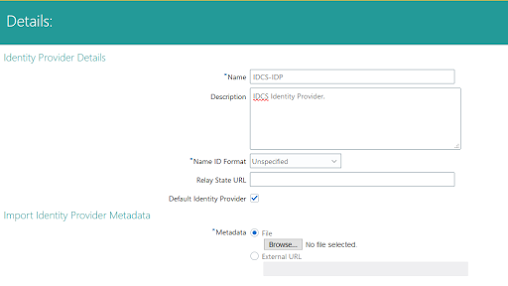
  • Click + Create Identity Provider.
    • Select Edit On Top
    • Provide following details. 
      • Name : IDCS-IDP
      • Description : IDCS Identity Provider.
      • Name Id Format - Unspecified - Select from drop down. 
      • Select Default Identifier Option.  
      • Upload the Meta data file downloaded from IDCS - Refer Above Pre-config steps. 
      • Save and Close


        • Select Service Provider Tab
        • Download the Service Provider Signing Certificate. 


      IDCS Configurations: 

      • Create Fusion Application :
        • Login to IDCS
        • Go to Applications
        • Select Add ( + )
        • Select App Catalog
        • Search for Oracle Fusion 
        • Select R13 app
      • Provide following details to the App - 
        • Name : Fusion ERP SSO App
        • Description : Fusion ERP SSO App
        • Select required SaaS Applications
        • Go to Next Page
        • Open the SP_Metadata.xml file downloaded as part of pre-config  step. 
        • Get EntityId value
          • entityID="https://login-ics-dev1-saasfaprod1.fa.ocs.oraclecloud.com:443/oam/fed"
        • Assertion Consumer Value:
          • <md:AssertionConsumerService Binding="urn:oasis:names:tc:SAML:2.0:bindings:HTTP-POST" Location="https://login-ics-dev1-saasfaprod1.fa.ocs.oraclecloud.com/oam/server/fed/sp/sso" index="1"/>
        • Upload the signing certificate that was downloaded from Fusion apps during SSO configuration. Refer Above Fusion activity . 
        • Download Signing Certificate and Identity Provider Metadata and save as file and click “Next”
        • On the Provisioning tab DO NOT Enable Provisioning and click the Finish button to complete the application setup
        • Activate the application. 

      TEST and ENABLE SSO :
      • Login to SaaS application using Security Admin User. 
      • Make sure the user is present in IDCS and updated as Federated. Same User is present in SaaS as well --- Note
      • Go to Security Console
      • Select Single Sign-On on left Menu
      • Select the IDCS-IDP created earlier. 
        • Select Diagnostics and Activation 
        • Select TEST
        • Select IDCS-IDP and Click Start SSO
        • It will take you to IDCS login Page. 
          • Provide SSO credentials. 
          • After Successful authentication Status will get updated as Success. 
          • Enable Identity Provider. 


      Saturday, 3 July 2021

      Oracle Fusion - User and Role Sync from Fusion to IDCS

      Refer my previous blogs for configuring SSO and OAuth authentication between IDCS and Fusion applications. 

      In this blog , I will explain how to sync Users (Can be used to migrate Existing Users from Fusion to IDCS) and Roles from Fusion. 

      Note:  As I explained in my earlier blogs, user can be originated in Fusion or IDCS. In case users are getting created in SaaS and then it requires to Sync with IDCS then we can use the following Sync configurations.  This configuration can also be used as a pre cutover activity to Sync an existing users from fusion and then use IDCS as an user Origin.  Once the Sync is done , we can disable this configuration. 

      As we all know , roles will be originated only in Fusion and these roles can be synched to IDCS to create corresponding roles in IDCS.  

      Pre Requisite : 
      • Create an IDCS client application with User Admin roles. 
      • Login to IDCS
      • Go to Applications
      • Create Confidential Application.
      • Provide Name as - Fusion IDCS Application. 
      • Next Page - Select configure this application as Client Now.
        • Select Allowed Grant Type - Client Credentials
        • Client Type - Confidential
        • Under Grants 
          • Select User Administrator role.
        • Select Next and Finish
        • Save 
        • Activate.
      • Note down the client id and secret. 

      Oracle Fusion Setup:
      • Login to Fusion Application. Use Admin User
      • Go to Setup and Maintenance
      • Select Tasks
      • Select Manage Setup Content
        • Under Topology Definition 
        • Select Manage Integration of Additional Applications
        • Select Create ( + ) 
        • Create Application Integration page will open.
          • Application Name - IDCS_REST_APP
          • Full URL : https://<IDCS-HOST-NAME>/admin/v1
          • Partner Name : IDCS
          • Security Policy : Select - oracle/wss_username_token_over_ssl_client_policy
          • User Name : Enter the Client Id 
          • Password :  Client Id Secret. 
            • Refer Above created IDCS applications for Client Id and Secret. 
          • Apply 
          • Save and Close.


      • Create Task Lists and Tasks:
        • Go to Setup and Maintenance
        • Select Tasks
        • Select Manage Setup Content
          • Under Functional Definition
            • Select Manage Task Lists and Tasks
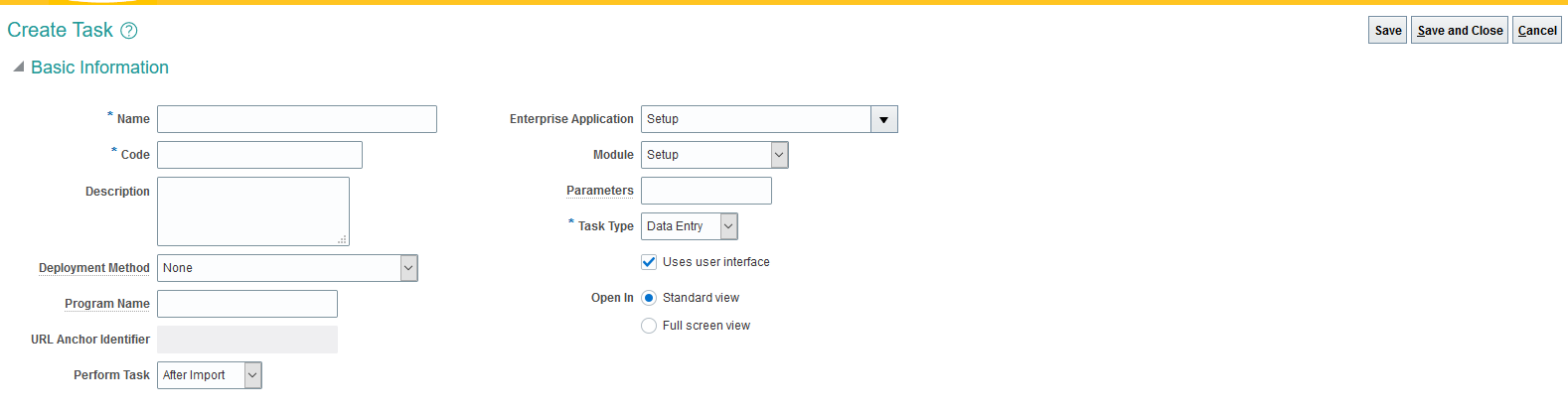
            • Select Create Task
            • Provide following details - You must use the same values. These values are seeded values. 
            • Click Save, but don’t close yet.
            • To save the Oracle Identity Cloud Service access credentials in the Oracle Fusion Applications Cloud Service credential store, click Test Go to Task.
            • In the Fusion Applications IDCS Sync App Credentials dialog, 
            • enter the Oracle Identity Cloud Service Admin console in the URL in the URL field. 
            • Enter the client ID of the Oracle Identity Cloud Service Application as the user name. 
            • Enter the secret key of the Oracle Identity Cloud Service application as the password.


      Field Name

      Field Value

      Name

      Fusion Applications IDCS Sync App Credentials

      Code

      FUSION_APPLICATIONS_IDCS_SYNC_APP_CREDENTIALS

      Description

      Fusion Applications IDCS Sync App Credentials

      Deployment Method

      None

      Program Name

      /WEB-INF/oracle/apps/setup/commonSetup/setupHub/publicUi/flow/EndpointPolicyFlow.xml#EndpointPolicyFlow

      Perform Task

      After Import

      Enterprise Application

      Setup

      Module

      Setup

      Parameters

      endpointKey=FA_USER_SYNC_IDCS_CLIENT_ID&filterSecurityPolicies=oracle/wss_username_token_over_ssl_client_policy

      Task Type

      Data Entry

      Uses user interface

      Selected

      Open In

      Standard view


      We can update the Sync profile to control the batch process. Use the following steps to update the profile options. 

      Modify Profile Options for User Sync. 

      • Go to Setup and Maintenance and search for task: Manage Administrator Profile Values
      • Edit the below Profile options at Site level
        • FND_USER_MIGRATION_FETCH_BATCH_SIZE = 1000
        • FND_USER_MIGRATION_MAX_RETRY_ATTEMPTS = 2
        • FND_ROLE_SYNC_MAX_SELECTED_ROLES_SIZE = 1000
        • FND_USER_IDENTITY_SYNC_TARGET=IDCS
        • FND_SYNC_JOB_TYPE=USER/ROLE/ALL
          • USER - To Sync Only User
          • ROLE - To Sync Only Roles
          • ALL -  To Sync Both User and Role. 
        • FND_USER_MIGRATION_FA_FEDERATION=True  -- Default value is True
      Schedule User Or Role Sync Job
      • Execute the Scheduled Process: 
      • User identity synchronization from this SaaS instance to the PaaS Identity Store
      • Schedule this Job to Run Every day

      Add Specific Roles to be Synched to IDCS
      • From the Setup and Maintenance panel of your service, search for the task 
      • Migrate Enterprise Roles and Assignments to PaaS Identity.
      • Add all the Roles to be synchronized in this table


    • Login to Oracle Fusion application as admin user
    • Navigate to the Setup and Maintenance page and search for Manage Administrator Profile Values task
    • On the Manage Administrator Profile Values page search for Profile Option Code called FND_ROLE_SYNC_MAX_SELECTED_ROLES_SIZE
    • Scroll down to the Profile Values section and update the Site Level Profile Value to the desired number of roles i.e. greater than the default value of 15
    • Click the Save and Close button to save the changes


    • Monday, 10 May 2021

      ORACLE IDCS - OAUTH2 - Get Token

      Use the following details to get the OAuth Token from IDCS and invoke the service. 

      Authentication URL:  https://idcs-xxxx.identity.oraclecloud.com/oauth2/v1/authorize

      Authentication Token URL:  https://idcs-xxxx.identity.oraclecloud.com/oauth2/v1/token

      Scope:  From IDCS application. 


      Sunday, 20 December 2020

      ORACLE OIC - OAuth - Client with Multiple Audience from Different Resources

      As we migrate from on premise to cloud ,  one of the critical requirement from customer to use user propagation capability to propagate the user credentials to ERP or Other target applications. 

      This will allow the business users to track the changes and validate the records against a user making calls or updates to cloud. 

      Its expected that OIC will propagate the user credentials to SaaS or other down stream application .  But this capability is not present in OIC. 

      As a work around , you can configure an OIC service to receive the Authentication details in custom header and propagate to target. 

      Client or users are expected to send two different authentication tokens or a single token with multiple scope or audiences.  That is the same token will be authorized in IDCS based on the audience value in the token. 

      Following diagram will illustrate some of the security requirements. 


      We can have an individual IDCS for each application or we can use same IDCS for multiple application.  

      Users and Roles will be synced between IDCS and Cloud applications.  A sync job will be configured in IDCS to sync the users and roles. 

      Above diagram illustrate the security setup and clients accessing each application using a specific token. 

      Following are the some of the requirements.
      1. Client1 is configured to invoke OIC using OIC token.
      2. Client2 is configured to invoke OIC and SaaS using Single token
      3. Client2 can invoke SaaS directly using SaaS token.
      4. Client2 can invoke OIC is using OIC token. 
      5. Client3 is configured to invoke HCM using HCM token. 


      Wednesday, 20 May 2020

      JWT Token Authorization


      We can allow user to access application using multiple security configurations.  Basic authentication is a simple and commonly used security configuration.  Wherein users will be authenticated using user name password.

      Next authorization method which is used to access applications is JWT token. Jason Web Token are encoded as a JSON object and that are digitally signed using JWS - Jason Web Signature.  These token can also be encrypted using JWE - Jason Web Encryption.

      As I mentioned, these are encoded , signed and/or encrypted tokens. Basic format of JWT token is as follows.

        • Header
        • Payload
        • Signature


      Header:

      {
        "alg": "RS256",
        "typ": "JWT",
         "x5t": "ZZAMNA+cVwqRM7J4vn3KIoqdk2w"
      }


      alg -  Algorithm used to sign or encrypt JWT.
      typ: Contetnt
      x5t:  base64 encoded public certificate fingerprint . Use following command to get the fingerprint or thumbprint.
                  openssl x509 -noout -fingerprint -sha256 -inform pem -in [certificate-file.crt]


      Payload:

       {
           "userId":"vijayakv",
           "iss": "https://provider.domain.com/",
           "sub": "auth/some-hash-here",
           "exp": 153452683
       }


       {
      "iss": "www.oracle.com",
      "prn": "vijayakv",
      "iat": 1518071154,
      "exp": 1518081154
      }

      prn/userId:  Application User which has required access.
      exp: Token Expiry time
      iat: Issued At
      nbf: not before

      There are two ways to configure JWT .

      1.  Client generated JWT tokens.  Client is responsible for the security. 
      2. Identity provider generated JWT token.  IDCS/OKTA etc.

      Following steps will highlight how the Identity provider JWT token will work. 
      •  User will call Identity provider REST API to get the token using User Name and Password. 
      • Provider will generate the token and send it. 
      • User will use the token to call the Service API. 


      Following Steps will highlight how the client generated JWT token will work. 
      • Client will generate the SSL certificate and provide the public key to identity provider. 
      • Identity provider will configure the certificate and Issuer - ex: www.oracle.com 
      • Client will generate the JWT token in the above mentioned format. 
      • Client will encode the header and Payload part. 
      • Client will encode the public certificate 
      • Client will sign the JWT token using private key -- SSL private key. 
      HMACSHA256( base64UrlEncode(header) + "." +  base64UrlEncode(payload),  secret)


      After generating the token , client will call the application API using signed JWT token.

      Identity provider will decode and verify signature using configured public key/certificate.  If it matches the configured key and issuer then it authorize the user to access the application.


      JWT using Python Example :

      >>> pip install pyjwt
      >>> pip install cryptography
      >>> import jwt
      >>> private_key = open('secret-key').read()
      >>> token = jwt.encode({'user_id': 123}, private_key, algorithm='RS256').decode('utf-8')
      >>> token


      Note: 

      The generation of a signed JWT requires the use of a private (asymmetric algorithm)  or secret key (symmetric algorithm).  You will use Public key to verify the JWT which is signed using Private Key.

      The cert is just a way to bind a name to a public key. A certificate is a digital document that says "Entity A is the owner of publickey xyz", and that digital document is signed by a signing party. Usually you trust the signing party.

      Depending up on the signing algorithm , your server will decode (It wont require any keys) and VERIFY the keys sent in the token.

      Server will extract the public key from the certificate and validate with the private key that was used to sign the JWT token


      Oracle Fusion - Order Management Cross Reference

      Summary:  This guide outlines the steps to manage cross-reference data for Sales Order FBDI upload for the source systems,  including export...