Showing posts with label OCI. Show all posts

Monday, 4 July 2022

OCI - OGW - Oracle Gateway Configurations

Oracle offers multiple API management tools.  API Platform Cloud Service and Oracle Native Gateway or OCI Gateway are the prominent ones. 

API Platform Cloud Service will be managed by customers. Customer is responsible for managing API security and Infrastructure.  Customer needs to provision API PCS and then provision gateway server (Weblogic Server) to deploy all the application API. 

API PCS provides a management console to create and manage APIs . API's will be published to gateway servers.  Gateway servers will connect and poll the changes and deploy them on to the server. 

Following network flow diagram will show how the traffic flow can be configured and how the gateway servers will interact with management servers and backend applications. 


API PCS
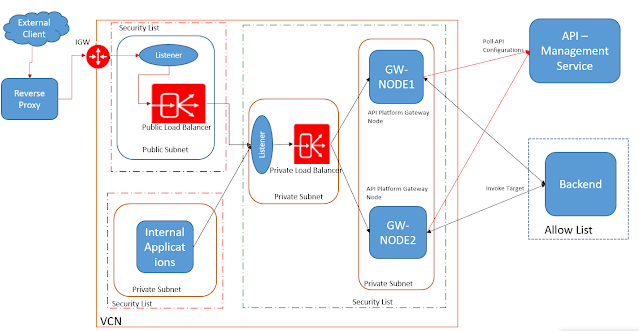
Network Flow Diagram


Oracle offers Gateway - a fully managed service to manage APIs. Here the customer is responsible for creating and managing API definition and security.  Underlying infrastructure is managed by Oracle.  

As part of OCI gateway configurations, we need to create a gateway and then deployments (API definitions).  Gateway will be created on a specific Compartment , VCN and Subnet. 

Specific security groups can be added or can be used to control access to the gateway.  We can use custom certificates while creating a gateway to enable mTLS connection. 

Create a deployment/API

  •     Provide a name. -- xxapi
  •     Provide a path prefix   -- ogw
  •     Select create from Scratch Option
  •     Select Authentication Policy to restrict access using JWT or Custom Authentication.
    • JWT
      • Authentication Token - Header
      • Header Name - Authorization
      • Authentication Schema -- Bearer
      • Issuer - https://identity.oraclecloud.com/ 
      • Audience - Add the scopes to be allowed. 
      • Public Keys
        • In this example , we will use the static key
        • Static Key
          • Provide a Key Id
          • Format - JSON Web Key
          • Get the Json Webkey from IDCS. Use the following endpoint to get the key - https://idcs-.identity.oraclecloud.com/admin/v1/SigningCert/jwk
Note :  Before accessing the key make sure access certificate is enabled in IDCS . Settings -> Default Settings and Toggle ON the Access Signing Certificate

Sample WebKey : 
{"format":"JSON_WEB_KEY","kid":"SIGNING_KEY","kty":"RSA","key_ops":["verify"],"alg":"RS256","n":"giU9t2dMPM_c_XXXXXXXXXXXXXXXXXXXXUrfr4iyqz7ULr67uAWiJl5ETjE-FMQIMqRtrtbcnXXXXXXXXXXXXXXXXXXXXXXXXXXXXXXXXXXXXXXXXXXXXXXXXXXXXXXXXXXXXXXXXXXKAPTpQj85ZM_8uzLdqvwr713IbNa0HEJ-Cia4jadNxVSiFNDWP-tUiX-M6yEq9CHL26vngNpDCvJ1-vf9hfwO0TQ","e":"AQAB"}

        • Remote JWKS  : To retrieve the keys at run time. 
  • Create Routes
    • Provide the incoming path
      • Sample : 
        • /target/services/default/{contextRoot}/{client_ep*}
    • Select the methods to be allowed from Source. 
    • Select the backend Type
      • HTTP
      • Oracle Function
    • Incase of HTTP backend provide the backend URL
      • https:/target_hostname/target/services/default/${request.path[contextRoot]}/${request.path[client_ep]}
    • Can define multiple routes pointing to multiple target applications. 

  • Save changes. 

OCI Command : 

oci api-gateway deployment create --compartment-id ocid1.compartment.oc1..id_value --display-name dvpc2s --gateway-id ocid1.apigateway.oc1.eu-frankfurt-1.oci_id --path-prefix /dvpc2s --specification file:////home/VijayaKuma/tlndvpc2s.json


Tuesday, 4 January 2022

Proxy Servers

 Forward Proxy : This will hide the source details and forward the requests to target server.  Forward proxy will acts like VPN - Virtual Private Network. 

    • This can be used where there is Geo restrictions. We can hide the source location and access the server. 
    • This will anonymize client IP address. 
    • Servers will receive the requests from Proxy Server and respond back to same proxy server. 
    • Both VPN and Forward proxy will perform the same action.  Both have advantage and disadvantage. 
    • Depending on the Proxy Server performance your end to end performance will vary.  
    • Always go for VPN.

Reverse Proxy: Reverse proxy acts like a front for Servers. Like a load balancers. This will anonymize the server IP address. 
    • Reverse proxy can acts like a Load Balancer and distribute the traffic to multiple servers. 
    • Acts like Global Server Load Balancer . Advanced load balancer concept to distribute the traffic to multiple servers deployed across the world. 
    • Provides enhanced security to secure the servers. Avoid DDoS attacks. 
    • Provides caching capabilities. 
    • Provides SSL encryption and termination. 

  • Main Reverse Proxies
      • Nginx
      • Varnish
      • Apache Traffic Server


Root Domain:  snvvijaya.com
Blog Hosted On Sub Domain : blog.snvvijaya.com
Blog Hosted on Sub Folder : snvvijaya.com/blog


Tuesday, 11 May 2021

ORACLE OCI - Object Storage Multi Part Upload

In some cases we may have to upload larger file and uploading larger file may take more time and bandwidth.  In such cases we can split the file into multi parts and upload them in parallel. 

We can use the following steps to split and upload the files to object storage. 

  • First split the file based on the required size using split command. 
    • split -b 5M -d /tmp/bigfilename.txt /tmp/bigfilename.split
  • Create a multi part upload request. 
    • POST
    • /n/{namespaceName}/b/{bucketName}/u
    • Request Payload

{
  "object": "example_object1"
}

    • Response Payload 

{

  "namespace": "ansh8lvru1zp",
  "bucket": "MyBucket",
  "object": "MyObject1",
  "uploadId": "c892336f-ccvb-1bb8-6e75-a5649fd91178"
}
            •  Use the above upload Id to upload the files. 
            • Loop over each file and upload the files 
              • PUT
              • /n/{namespaceName}/b/{bucketName}/u/{FinalFileName}?uploadid={UploadID}&uploadPartNum={partNum/SequenceNum}
            • After Upload , get all the multi part upload details. 
              • GET
              • /n/{namespaceName}/b/{bucketName}/u/{FinalFileName}?uploadid={UploadID}
              • Sample Response
            [
              {
                "partNumber": 1,
                "etag": "3d240a5a-a2b0-45b2-bcvb-2ac6a02b422c",
                "md5": "rvr3UC1SmUw7cvb2NqPN0g==",
                "size": 8
              },
              {
                "partNumber": 2,
                "etag": "15de104e-7cvb-3513-8da1-3b5e75a65ad7",
                "md5": "3poFVtJezCVBOi8RzhUB8Q==",
                "size": 8
              }
            ]

            • Finally commit the upload. 
              • POST
              • /n/{namespaceName}/b/{bucketName}/u/{FinalFileName}?uploadid={UploadID}
              • Request Payload
             
            {
              "partsToCommit": [
                {
                  "partNum": 1,
                  "etag": "3d240a5a-a2b0-45b2-bcvb-2ac6a02b422c"
                },
                {
                  "partNum": 2,
                  "etag" : "15de104e-7cvb-3513-8da1-3b5e75a65ad7"
                }
              ]
            }


                                                                Tuesday, 17 November 2020

                                                                OCI-SSH Tunneling to ATP DB

                                                                 Connect to Autonomous Database Private Endpoint from On-Premise SQL Developer using SSH Local Port Forwarding

                                                                Assumptions:

                                                                1. Your Bastion/ServiceVM/Bastion Host is “140.x.x.16” using Private Key “/Users/shadab/Downloads/Oracle Content/Keys/mydemo_vcn.priv” which is copied and available on the on-premise client machine
                                                                2. Your Autonomous Database Private Endpoint IP is “10.10.2.11” running over port 1522
                                                                3. There is connectivity from Bastion Host “140.x.x.16” to Autonomous Database “10.10.2.11” running over port 1522
                                                                4. Your Autonomous Database wallet zip file is available on the on-premise client machine

                                                                Connect :
                                                                — From the On-Premise Client Machine Add the Hostname of the Autonomous Database which is in the tnsnames.ora file from your wallet file —

                                                                eg:
                                                                atpocipaas_high = (description= (retry_count=20)(retry_delay=3)(address=(protocol=tcps)(port=1522)(host=hogmsumb.adb.ap-sydney-1.oraclecloud.com))(connect_data=(service_name=pjjuahqavguuilt_atpocipaas_low.atp.oraclecloud.com))(security=(ssl_server_cert_dn=”CN=adb.ap-sydney-1.oraclecloud.com,OU=Oracle ADB SYDNEY,O=Oracle Corporation,L=Redwood City,ST=California,C=US”)))

                                                                $ sudo vi /etc/hosts
                                                                127.0.0.1 hogmsumb.adb.ap-sydney-1.oraclecloud.com localhost

                                                                Now create a SSH tunnel with local port forwarding to forward local port 1522 to remote host 10.10.2.11 and remote port 1522

                                                                $ ssh -fNT -v -L 1522:10.10.2.11:1522 opc@140.x.x.16 -i “/Users/shadab/Downloads/Oracle Content/Keys/mydemo_vcn.priv”

                                                                Check with telnet

                                                                $ telnet hogmsumb.adb.ap-sydney-1.oraclecloud.com 1522
                                                                Trying 127.0.0.1…
                                                                debug1: Connection to port 1522 forwarding to 10.10.2.11 port 1522 requested.
                                                                debug1: channel 3: new [direct-tcpip]
                                                                Connected to hogmsumb.adb.ap-sydney-1.oraclecloud.com.
                                                                Escape character is ‘^]’.

                                                                Now connect with SQL Developer using option ‘cloud wallet’ using any one of the TNS entry and using the “ADMIN” user with which you created the Autonomous Database or any other DB user

                                                                Oracle Fusion - Order Management Cross Reference

                                                                Summary:  This guide outlines the steps to manage cross-reference data for Sales Order FBDI upload for the source systems,  including export...