Tuesday, 16 November 2021

Weblogic - Enable Two Way SSL

Weblogic SSL Implementation:


Basic Terminologies :

SSL Termination: You can terminate SSL at Load Balancer and communication from Load Balancer to WebLogic Server as non SSL (In this case Load Balancer is configured to listen on SSL but WebLogic Server is configured to listen on NON SSL)

Identity/Keystore: A server which hosts traffic on a port which has SSL/TLS enabled, has an identity keystore. This identity keystore contains a private key and a public key/certificate. The public key/certificate can safely be given to other parties. With websites when visiting an HTTPS website (HTTP with SSL enabled), the public key is send to you. The other party / client can use the public key to encrypt messages meant for the server. The only one who can decrypt the messages is the one having the private key of the server. This is usually only the server.

Trust : Can you trust a server? You can use a certificate authority - CA to create a signed public key. If someone trust the certificate authority, that someone also automatically trusts the signed key. With websites you often see a green lock when a certain website uses HTTPS with a public certificate signed by a (by your we browser) trusted certificate authority.

Usually a trust store is used to store trusted certificate authorities -CA or specific trusted certificates. If you have many servers in your application landscape, it is recommended to use a certificate authority since it is cumbersome to load every public key of every server in every trust store. Trusting a single certificate authority makes things a lot easier.

If you are accessing Public Servers (Example Microsoft , Google etc.) then server will verify these certificates with Public CA and trust the connections automatically.  In case if you are accessing non Public Servers (Internal Servers) then we need to add the public certificates of these Servers into Trust store to Trust the Server and Connection. 

Default JRE cacerts (%JAVA_HOME%\jre\lib\security\cacerts) will contain collection of trusted CA certificates and trust the connection. We don't need to add CA certificates explicitly . 

We can also create a separate Keystore to store Identity and Trust Keys.

-javax.net.ssl.keyStore 

 -javax.net.ssl.trustStore 

SSL Connection - One Way:  Anytime when a client makes a SSL connection request to Server/Origin, Server will present the Key stored in Keystore/Identity Store.  Client will verify the presented Key by comparing it with the keys stored in Trust Store. 


SSL Connection - Two Way: Anytime when a client makes a SSL connection request to Server/Origin, Server will present the Key stored in Keystore/Identity Store.  Client will verify the presented Key by comparing it with the keys stored in Trust Store. In two way SSL client also has to authenticate itself and it has to present the Key stored in Keystore and Server will validate the Key with the keys stored in Server Trust Store. 


Keystore Setup: 

Create Identity Key: 

keytool -genkey -keystore <keystore_name>.jks -alias <privatekey_alias_name> -keyalg RSA -validity <validity in days> -keysize 2048


keytool -genkey -alias mykey -keyalg "RSA" -sigalg "SHA256withRSA" -keysize 2048 -validity 365 -dname "CN=soa, C=US" -keystore soa-default-keystore.jks -storepass $STOREPASS -keypass $KEYPASS


Note down the password. 

Create CSR Request:

keytool -certreq -alias <privatekey_alias_name> -keystore <keystore_name>.jks -file <csr_file_name>.csr

Send the CSR request file to signing authority.  Get the signed certificate and import the certificates into identity key. 

Import Signed Certificate and Root Certificate. Import Root and then signed certificate

keytool -import -alias signedCer -keystore <keystore_name>.jks -file <signed_certificate>.crt

keytool -import -trustcacerts -alias root -file <root_certificate>.cer -keystore <keystore_name>.jks


Export Public Certificate From Keystore. 

keytool -export -alias <privatekey_alias_name> -keystore <keystore_name>.jks  -file <pub_cert_name>.cer

keytool -exportcert -alias mykey -keystore soa-default-keystore.jks -storepass $STOREPASS -file soacert.der

Create Trust Store Key and Import Client Cert:

keytool -import -alias <alias_name> -trustcacerts -file  <client_certificate> -keystore <trust_store_file_name>.jks

Note down the password. 

We can create a trust store by importing CA certificates.

keytool -import -file /vijaya/firstCA.cert -alias firstCA -keystore myTrustStore

keytool -importcert -alias mykey -keystore osb-trust-keystore.jks -storepass $STOREPASS -file soacert.der -keypass $KEYPASS

Weblogic Server Configurations:

Servers --> Managed Server   --> Kestore --> (Change Keystore Type to Custom Identity and Custom Trust)

Go to SSL Tab --> Provide Private Key Alias and Pass Phrase. 

Select Advanced --> Two Way Client Cert Behavior: ---> Client Certs Requested And Enforced


Note: Selecting Client Certs Requested But Not Enforced enables two-way SSL. With this option, the server requests a certificate from the client, but the connection continues if the client does not present a certificate. 

Selecting Client Certs Requested And Enforced also enables two-way SSL and requires a client to present a certificate. However, if a certificate is not presented, the SSL connection is terminated.

Reference : https://docs.oracle.com/cd/E24329_01/web.1211/e24422/identity_trust.htm#SECMG536


How WebLogic Server Locates Trust

  • If the keystore is specified by the -Dweblogic.security.SSL.trustedCAkeystore command-line argument, load the trusted CA certificates from that keystore.
  • Else if the keystore is specified in the configuration file (config.xml), load trusted CA certificates from the specified keystore. If the server is configured with DemoTrust, trusted CA certificates will be loaded from the WL_HOME\server\lib\DemoTrust.jks and the JDK cacerts keystores.
  • Else if the trusted CA file is specified in the configuration file (config.xml), load trusted CA certificates from that file (this is only for compatibility with 6.x SSL configurations).
  • Else load trusted CA certificates from WL_HOME\server\lib\cacerts keystore.

Saturday, 3 July 2021

Oracle Fusion - User and Role Sync from Fusion to IDCS

Refer my previous blogs for configuring SSO and OAuth authentication between IDCS and Fusion applications. 

In this blog , I will explain how to sync Users (Can be used to migrate Existing Users from Fusion to IDCS) and Roles from Fusion. 

Note:  As I explained in my earlier blogs, user can be originated in Fusion or IDCS. In case users are getting created in SaaS and then it requires to Sync with IDCS then we can use the following Sync configurations.  This configuration can also be used as a pre cutover activity to Sync an existing users from fusion and then use IDCS as an user Origin.  Once the Sync is done , we can disable this configuration. 

As we all know , roles will be originated only in Fusion and these roles can be synched to IDCS to create corresponding roles in IDCS.  

Pre Requisite : 
  • Create an IDCS client application with User Admin roles. 
  • Login to IDCS
  • Go to Applications
  • Create Confidential Application.
  • Provide Name as - Fusion IDCS Application. 
  • Next Page - Select configure this application as Client Now.
    • Select Allowed Grant Type - Client Credentials
    • Client Type - Confidential
    • Under Grants 
      • Select User Administrator role.
    • Select Next and Finish
    • Save 
    • Activate.
  • Note down the client id and secret. 

Oracle Fusion Setup:
  • Login to Fusion Application. Use Admin User
  • Go to Setup and Maintenance
  • Select Tasks
  • Select Manage Setup Content
    • Under Topology Definition 
    • Select Manage Integration of Additional Applications
    • Select Create ( + ) 
    • Create Application Integration page will open.
      • Application Name - IDCS_REST_APP
      • Full URL : https://<IDCS-HOST-NAME>/admin/v1
      • Partner Name : IDCS
      • Security Policy : Select - oracle/wss_username_token_over_ssl_client_policy
      • User Name : Enter the Client Id 
      • Password :  Client Id Secret. 
        • Refer Above created IDCS applications for Client Id and Secret. 
      • Apply 
      • Save and Close.


  • Create Task Lists and Tasks:
    • Go to Setup and Maintenance
    • Select Tasks
    • Select Manage Setup Content
      • Under Functional Definition
        • Select Manage Task Lists and Tasks
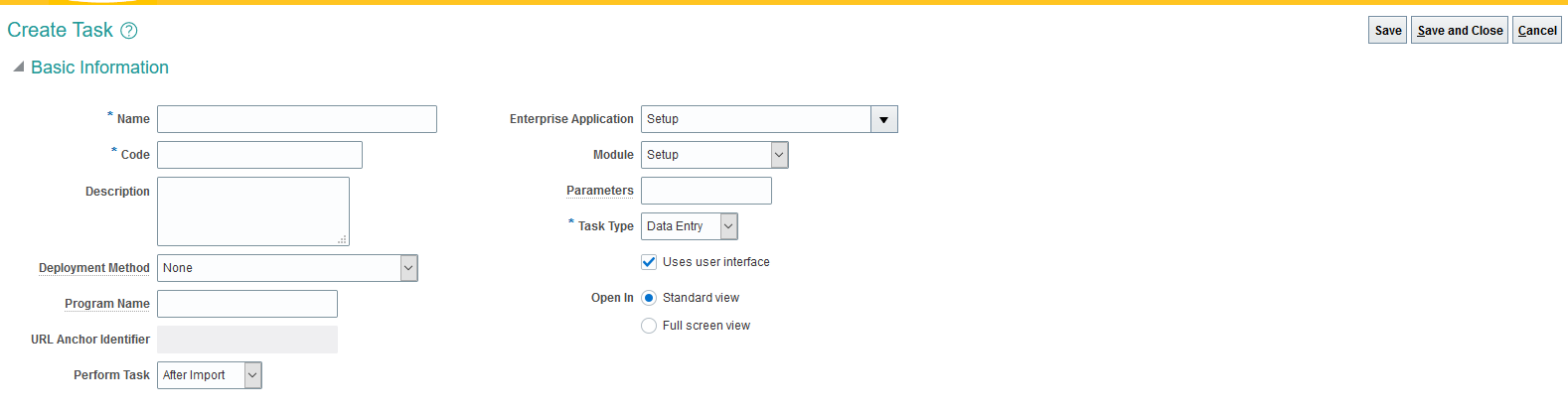
        • Select Create Task
        • Provide following details - You must use the same values. These values are seeded values. 
        • Click Save, but don’t close yet.
        • To save the Oracle Identity Cloud Service access credentials in the Oracle Fusion Applications Cloud Service credential store, click Test Go to Task.
        • In the Fusion Applications IDCS Sync App Credentials dialog, 
        • enter the Oracle Identity Cloud Service Admin console in the URL in the URL field. 
        • Enter the client ID of the Oracle Identity Cloud Service Application as the user name. 
        • Enter the secret key of the Oracle Identity Cloud Service application as the password.


Field Name

Field Value

Name

Fusion Applications IDCS Sync App Credentials

Code

FUSION_APPLICATIONS_IDCS_SYNC_APP_CREDENTIALS

Description

Fusion Applications IDCS Sync App Credentials

Deployment Method

None

Program Name

/WEB-INF/oracle/apps/setup/commonSetup/setupHub/publicUi/flow/EndpointPolicyFlow.xml#EndpointPolicyFlow

Perform Task

After Import

Enterprise Application

Setup

Module

Setup

Parameters

endpointKey=FA_USER_SYNC_IDCS_CLIENT_ID&filterSecurityPolicies=oracle/wss_username_token_over_ssl_client_policy

Task Type

Data Entry

Uses user interface

Selected

Open In

Standard view


We can update the Sync profile to control the batch process. Use the following steps to update the profile options. 

Modify Profile Options for User Sync. 

  • Go to Setup and Maintenance and search for task: Manage Administrator Profile Values
  • Edit the below Profile options at Site level
    • FND_USER_MIGRATION_FETCH_BATCH_SIZE = 1000
    • FND_USER_MIGRATION_MAX_RETRY_ATTEMPTS = 2
    • FND_ROLE_SYNC_MAX_SELECTED_ROLES_SIZE = 1000
    • FND_USER_IDENTITY_SYNC_TARGET=IDCS
    • FND_SYNC_JOB_TYPE=USER/ROLE/ALL
      • USER - To Sync Only User
      • ROLE - To Sync Only Roles
      • ALL -  To Sync Both User and Role. 
    • FND_USER_MIGRATION_FA_FEDERATION=True  -- Default value is True
Schedule User Or Role Sync Job
  • Execute the Scheduled Process: 
  • User identity synchronization from this SaaS instance to the PaaS Identity Store
  • Schedule this Job to Run Every day

Add Specific Roles to be Synched to IDCS
  • From the Setup and Maintenance panel of your service, search for the task 
  • Migrate Enterprise Roles and Assignments to PaaS Identity.
  • Add all the Roles to be synchronized in this table


  • Login to Oracle Fusion application as admin user
  • Navigate to the Setup and Maintenance page and search for Manage Administrator Profile Values task
  • On the Manage Administrator Profile Values page search for Profile Option Code called FND_ROLE_SYNC_MAX_SELECTED_ROLES_SIZE
  • Scroll down to the Profile Values section and update the Site Level Profile Value to the desired number of roles i.e. greater than the default value of 15
  • Click the Save and Close button to save the changes


  • Wednesday, 23 June 2021

    ORACLE - FUSION : Common Lookup DFF Configuration.

     Following steps will let you know how to configure DFF's for common lookups and use them while configuring common lookups. 

    Normal common lookups will let you configure lookup code and corresponding meaning.  If you want to configure additional values for a lookup code then you can use DFF's to configure context and use them in lookups. 

    MANAGE DFF

    • Login into Fusion. 
    • Go to Manage and Setup 
    • Search for Manage Descriptive Flexfields
    • Search for Lookup values descriptive flexfield (Name)
    • Edit - Lookup values descriptive flexfield
    • Manage Contexts
    • Search for existing contexts or Create a new one. 
    • Create
      • Give a display name  - XXSCM_SHOP_ORG_MAP_LOOKUP
      • API Name - XxscmShopOrgMapLookup
    • Save
    • Under Context Sensitive Segments add segments - ( additional lookup values )
      • Give a Name - Ex: Inventory_Organization
      • Data Type as Character
      • Table Column will auto populated - Attribute1
      • Under Value Set : Either select an existing one or create new
      • Create a New Value Set
        • Value Set Code - XXSCM_INV_ORG_NAME
        • Module - Inventory Management
        • Validation Type : Table   -- This will allow us to define table, column and where clause. 
        •  Under Definition 
          • From Clause - Provide Table Name - INV_ORGANIZATION_DEFINITIONS_V
          • Value Column Name - Provide Column Name - ORGANIZATION_CODE
          • ID Column Name :  ORGANIZATION_ID
          • WHERE Clause :  INVENTORY_ENABLED_FLAG = 'Y'
        • Save 
          • This will validate TABLE and Column Values. 
        • Save and Close the value set
        • Save and Close the Segment
      • Follow the above steps to create a new segment for inventory.
      • Save and Close the Context

    MANAGE COMMON LOOKUP:
    • Go to Manage and Setup 
    • Search for Manage Common Lookups
    • Add Common Lookup +
    • Lookup Type : XXSCM_SHOP_ORG_LOOKUP
    • Meaning : Give some valid meaning 
    • Description : Give some value Description
    • Module : Common
    • REST Access Secured :  Authenticated. 
      • Lookup Code
        • Add 
          • Lookup Code : Shop1
          • Meaning : Give a Name
          • Enable
          • Expand the lookup code
            • Select the context created earlier
            • Select the Org 
            • Select the Inventory

    Sunday, 6 June 2021

    Oracle OIC - ERP Adapter Filter Business Events

    We can use ERP adapter to consume Business Events from Fusion and process them. Before we need to subscribe the events , we need to create a CSF key or Token based authentication schema in Fusion.  ERP event handler framework will use these key or authentication schema to invoke the OIC integration. 

    Integration reactivated after 2021 - May will use the token based authentications. It doesn't require additional settings. 

    Use the ERP adapter at trigger point and select Business Events Operations and select the particular business event. 

    Example : Invoice Hold Applied. 

    This will create a subscriber entry in Fusion.  We can verify subscriber details using following URL. This will ask for credentials and need to provide valid credentials. 

    https://xx-vijay.fa.ocs.oraclecloud.com/soa-infra/PublicEvent/subscriptions

    All events are triggered from Fusion.  Fusion will use the subscriber details and invoke integrations.  


    Sample Invoice Hold Payload:

    <ns01:onEvent xmlns:ns01="http://xmlns.oracle.com/cloud/adapter/erp/XXVV_SUBSCRIBE_TO_INVHOLD_REQUEST/types">   <ns0:ApInvHoldAppliedInfo xmlns:ns0="http://xmlns.oracle.com/apps/financials/payables/invoices/transactions/model/entity/events">      <ns0:InvoiceId>         <ns0:newValue value="XXXXXXX00000001"/>         <ns0:oldValue/>      </ns0:InvoiceId>      <ns0:OrgId>         <ns0:newValue value="XXXXXXX00000002"/>         <ns0:oldValue/>      </ns0:OrgId>      <ns0:HoldId>         <ns0:newValue value="72011"/>         <ns0:oldValue/>      </ns0:HoldId>      <ns0:HoldLookupCode>         <ns0:newValue value="AMT REC"/>         <ns0:oldValue/>      </ns0:HoldLookupCode>      <ns0:HoldReason>         <ns0:newValue value="Amount billed exceeds amount received."/>         <ns0:oldValue/>      </ns0:HoldReason>      <ns0:LineNumber>         <ns0:newValue value=""/>         <ns0:oldValue/>      </ns0:LineNumber>      <ns0:HeldBy>         <ns0:newValue value="5"/>         <ns0:oldValue/>      </ns0:HeldBy>      <ns0:HoldDate>         <ns0:newValue value="2021-06-04T06:27:33"/>         <ns0:oldValue/>      </ns0:HoldDate>      <ns0:LineLocationId>         <ns0:newValue value="XXXXXXX00000003"/>         <ns0:oldValue/>      </ns0:LineLocationId>      <ns0:RcvTransactionId>         <ns0:newValue value=""/>         <ns0:oldValue/>      </ns0:RcvTransactionId>   </ns0:ApInvHoldAppliedInfo></ns01:onEvent>


    Use the following Filter Expression to filter a specific Hold. 


    <xpathExpr xmlns:ns0="http://xmlns.oracle.com/apps/financials/payables/invoices/transactions/model/entity/events">$eventPayload/ns0:HoldLookupCode/ns0:newValue/@value='AMT REC'</xpathExpr>


    $eventPayload: Inbuilt variable which will contain the payload. 


    Friday, 21 May 2021

    Oracle OIC - ERP/HCM Adapter with OAuth Authentication

    Oracle has introduced an OAuth authentication mechanism to access ERP and HCM applications using ERP/HCM  adapter respectively in OIC. 

    This will solve the following security issues. 

    1. Can maintain user credentials in IDCS. 
    2. Wont require to reset the passwords during P2T refresh. 
    3. Better security compared to basic authentication. 
    4. Authentication will work even password will get expired in IDCS or Fusion. 
    Set Up Trust Between Oracle Fusion Applications and Oracle Identity Cloud Service.

    • Get the JWK signing certificates from the Oracle IDCS of Oracle Integration.
    • Get the REST API of the Oracle IDCS endpoint that gives you the signing certificate endpoint.
      • <IDCS_HOST_NAME>/admin/v1/SigningCert/jwk
      • Note :  Before accessing the key make sure, access certificate is enabled in IDCS . Got to  Settings -> Default Settings and Toggle ON the "Access Signing Certificate"
    • Copy the certificates present under "x5c" JSON element.
    • Use the following template and save the certificates as .crt files.
    -----BEGIN CERTIFICATE-----
     content_of_certificate
    . . .
    . . .
    -----END CERTIFICATE----- 

    • Upload the above certificates to the Oracle Fusion/HCM Applications Security Console.
    • Note:  Since HCM and Fusion are using IDCS and following Authenticator provider will be in non editable mode. https://identity.oraclecloud.com/
    • Raise an SR with Oracle team to upload the certificates and attached to this authentication provider. 

    Create an ERP/HCM resource application. 
      • Login into IDCS
      • On the left Panel , Click the Applications and then click Add
      • Select the confidential application option
      • Provide a Name
      • Go to next page
      • Select the option - Configure this application as a resource server now.
      • Select Is Refresh Token Allowed.
      • In the Primary Audience field, add the Oracle Fusion/HCM Applications URL and port.
        • https://FA_URL:443
        • In the Scopes section, click Add.
        • In the Scope field, enter /.
        • In the Description field, enter All.
        • Select Requires Consent.
        • Click Add, then click Next.
        • Click Finish to complete resource application creation.
        • Click Activate to activate your client application.


    Create a confidential Client application 
      • In the left navigation pane, select Applications, then click Add to add a client application.
      • Select Confidential Application.
      • The Add Confidential Application wizard is displayed.
      • Provide a Name
      • Select Configure as a client application
      •  Select appropriate Grant Types
      • Provide callback URL 
        • https://<OIC_HOST_NAME>/icsapis/agent/oauth/callback
      • Select Client Type as Trusted if required and import SaaS certificate (Optional and Not Required)
      • Add Scope
        • Select ERP/HCM Resource application which we created earlier. 
        • Select the scope
      • Save changes
      • Activate the application
      • Collect Client Id and Secret. 
    OIC Configurations:
      • Login into OIC using admin or developer access.
        • Make sure this user has got an access to Oracle Fusion as well. 
      • Create ERP/HCM Adapter with Invoke Operation. 
        • Provide SaaS URL
        • Select Authentication type as OAuth Client Credentials.
          • Provide Client Id and Secret which we got above. 
          • Provide Authorization  and Token URL.
            • https://idcs-<Id>.identity.oraclecloud.com/oauth2/v1/authorize
            • https://idcs-<Id>.identity.oraclecloud.com/oauth2/v1/token
          • Provide Scope Value (Get it from IDCS client application.)
            • Add offline_access to the scope. 
            • https://<SaaS_Host_Name>.fa.ocs.oraclecloud.com:443/ offline_access
        • Select Provide Consent.
          • Provide OIC user credentials. 
          • Note : This user must present in Fusion as well. 
        • Save and Test the connection.

    Wednesday, 19 May 2021

    ORACLE OIC - IDCS SEARCH TO RETRIEVE DATA

     We can IDCS search API to get the required attributes and limited user list using pagination logic. 

    Use the following API details to fetch the data from IDCS. 

    URL: https://idcs-<id>.identity.oraclecloud.com/admin/v1/Users/.search

    Operation : POST

    IDCS Scope : urn:opc:idm:__myscopes__

    Sample Request Payload:

    {

      "schemas" : [ "urn:ietf:params:scim:api:messages:2.0:SearchRequest" ],

      "attributes" : [ "displayName", "userName", "emails", "active", "urn:ietf:params:scim:schemas:extension:enterprise:2.0:User:employeeNumber" ],

      "filter" : "((urn:ietf:params:scim:schemas:extension:enterprise:2.0:User:employeeNumber pr))",

      "startIndex" : 1,

      "count" : 100

    }

    OIC Expression  for Filter: 

    filter :   conct("meta.lastModified ge ", '"', $varStartDate, '"', " and meta.lastModified le ", '"', $varEndDate, '"')

    Tuesday, 11 May 2021

    ORACLE OCI - Object Storage Multi Part Upload

    In some cases we may have to upload larger file and uploading larger file may take more time and bandwidth.  In such cases we can split the file into multi parts and upload them in parallel. 

    We can use the following steps to split and upload the files to object storage. 

    • First split the file based on the required size using split command. 
      • split -b 5M -d /tmp/bigfilename.txt /tmp/bigfilename.split
    • Create a multi part upload request. 
      • POST
      • /n/{namespaceName}/b/{bucketName}/u
      • Request Payload

    {
      "object": "example_object1"
    }

      • Response Payload 

    {

      "namespace": "ansh8lvru1zp",
      "bucket": "MyBucket",
      "object": "MyObject1",
      "uploadId": "c892336f-ccvb-1bb8-6e75-a5649fd91178"
    }
              •  Use the above upload Id to upload the files. 
              • Loop over each file and upload the files 
                • PUT
                • /n/{namespaceName}/b/{bucketName}/u/{FinalFileName}?uploadid={UploadID}&uploadPartNum={partNum/SequenceNum}
              • After Upload , get all the multi part upload details. 
                • GET
                • /n/{namespaceName}/b/{bucketName}/u/{FinalFileName}?uploadid={UploadID}
                • Sample Response
              [
                {
                  "partNumber": 1,
                  "etag": "3d240a5a-a2b0-45b2-bcvb-2ac6a02b422c",
                  "md5": "rvr3UC1SmUw7cvb2NqPN0g==",
                  "size": 8
                },
                {
                  "partNumber": 2,
                  "etag": "15de104e-7cvb-3513-8da1-3b5e75a65ad7",
                  "md5": "3poFVtJezCVBOi8RzhUB8Q==",
                  "size": 8
                }
              ]

              • Finally commit the upload. 
                • POST
                • /n/{namespaceName}/b/{bucketName}/u/{FinalFileName}?uploadid={UploadID}
                • Request Payload
               
              {
                "partsToCommit": [
                  {
                    "partNum": 1,
                    "etag": "3d240a5a-a2b0-45b2-bcvb-2ac6a02b422c"
                  },
                  {
                    "partNum": 2,
                    "etag" : "15de104e-7cvb-3513-8da1-3b5e75a65ad7"
                  }
                ]
              }


                                                                  Oracle Fusion - Order Management Cross Reference

                                                                  Summary:  This guide outlines the steps to manage cross-reference data for Sales Order FBDI upload for the source systems,  including export...